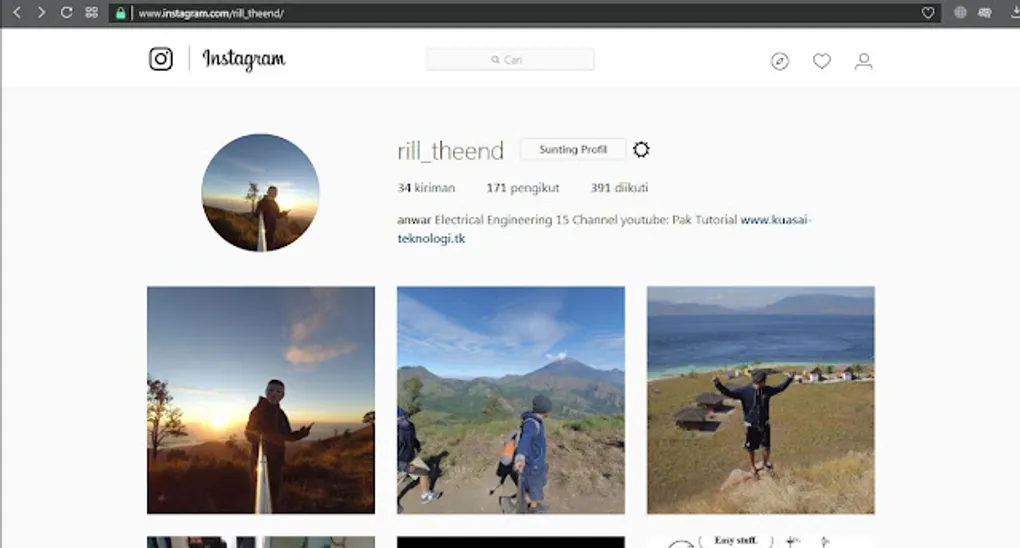
How to Upload Photos to Instagram Using a PC/Laptop (Windows 7 Version)
How to Upload Photos to Instagram Using a PC/Laptop (Windows 7 Version) – Hello Instagram fans! Before we dive into the details, it’s worth knowing who created this app. We shouldn’t just use it; we should also recognize the people behind it. Instagram was created by two people: Kevin Systrom and Mike Krieger, both Stanford University alumni. Instagram was launched on October 6, 2010. Two years later, on April 9, 2012, it was announced that Facebook agreed to acquire Instagram for $1 billion.
The paragraph above briefly explains the history of Instagram’s founders. Now, let’s move on to the steps for How to Upload Photos to Instagram Using a PC (Windows 7 Version). Follow the steps below:
Step 1: Access Instagram
First, go to the official Instagram website at www.instagram.com. After logging in with your Facebook or Gmail account, you’ll be taken to the Instagram home feed. Click on your profile icon.
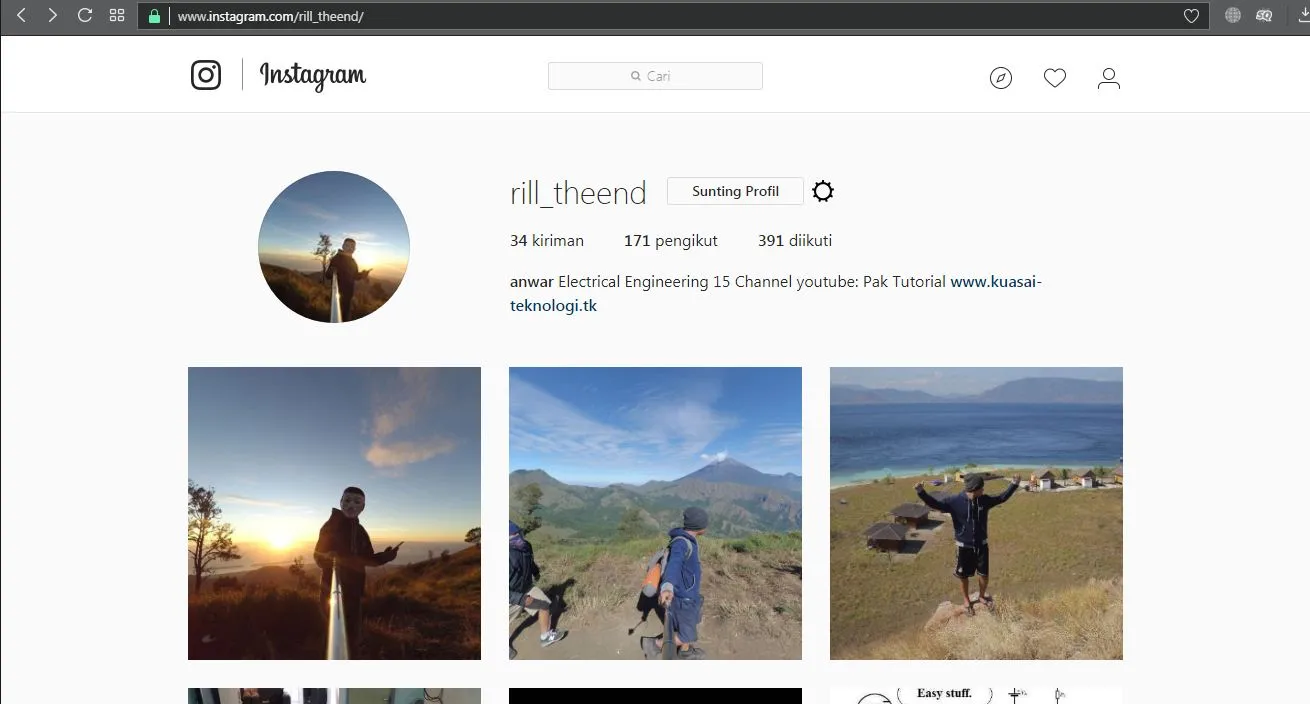
Step 2: Open Developer Tools
Right-click anywhere on the page and select Inspect or Inspect Element. This will open the developer tools as shown below:
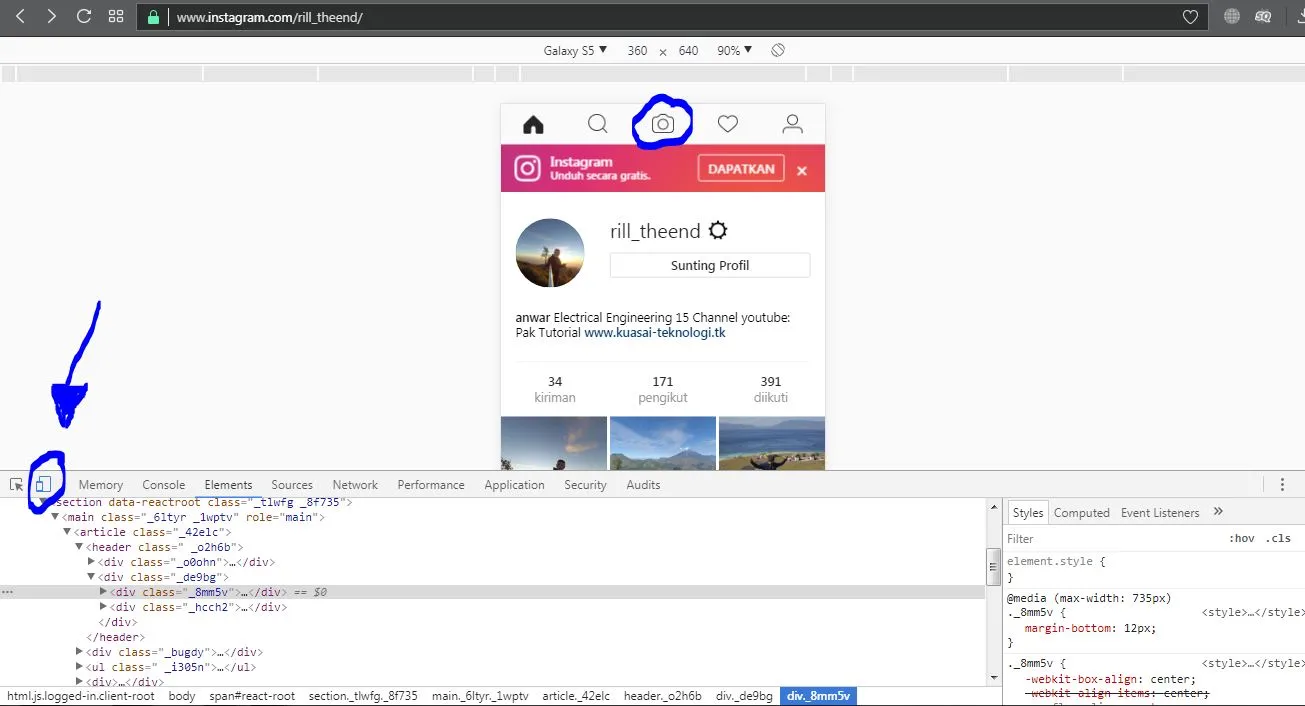
Step 3: Switch to Mobile View
In the developer tools, click the Device Toolbar icon (it looks like a smartphone/tablet) indicated by the arrow. This will change the layout to a mobile view. After switching, click the “plus” icon at the bottom of the feed to upload your photo. If the icon doesn’t appear, try reloading the page while keeping the mobile view active.
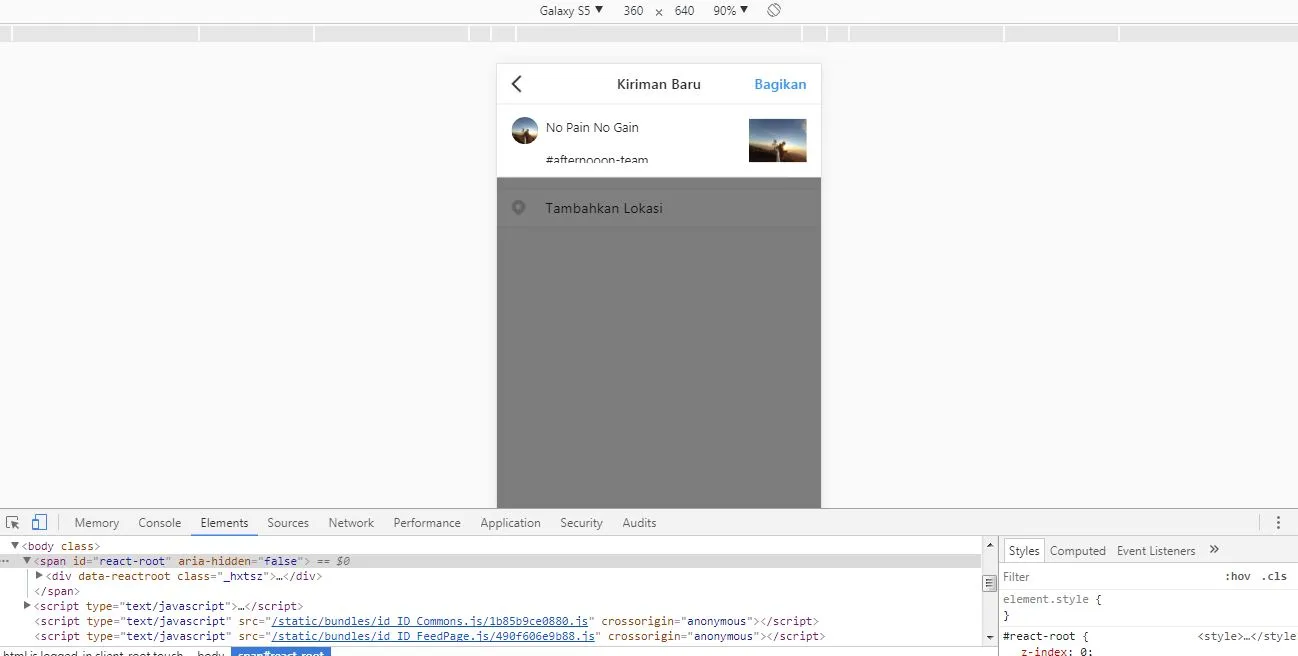
Step 4: Add Caption and Share
Once your photo is uploaded, you can write a description or caption. When you’re done, click Share.
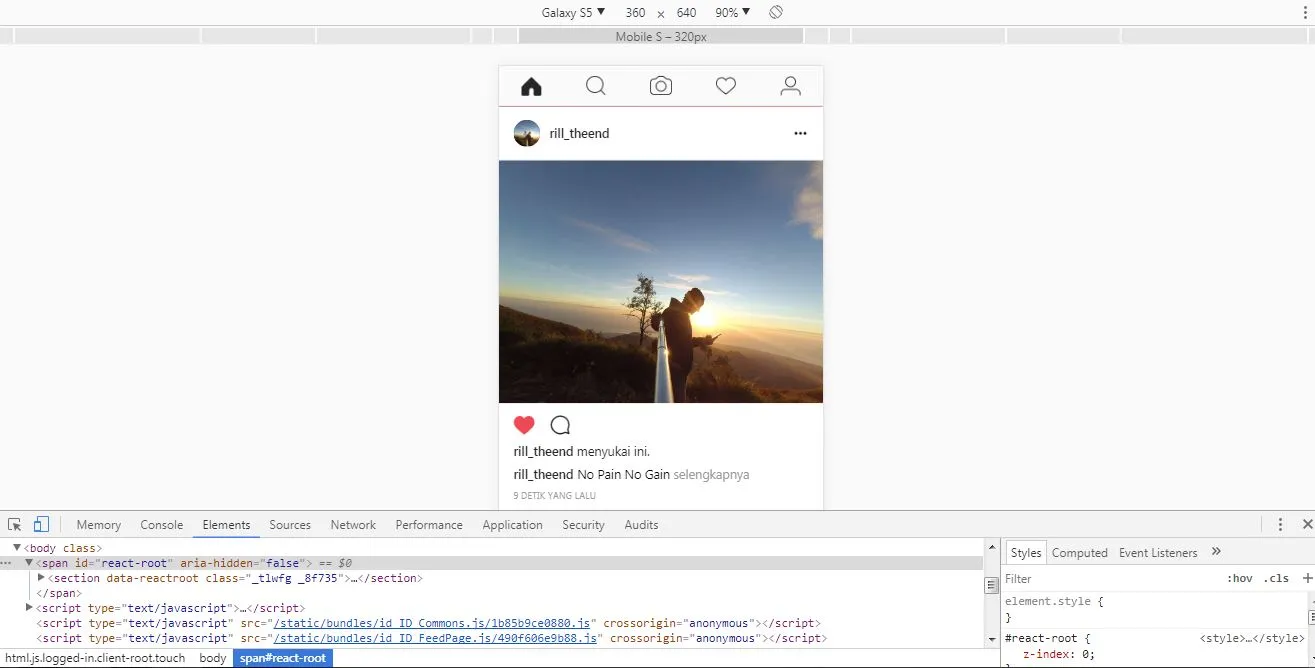
Step 5: Verification
Your photo should now appear on your home feed. You can confirm by clicking on your profile.
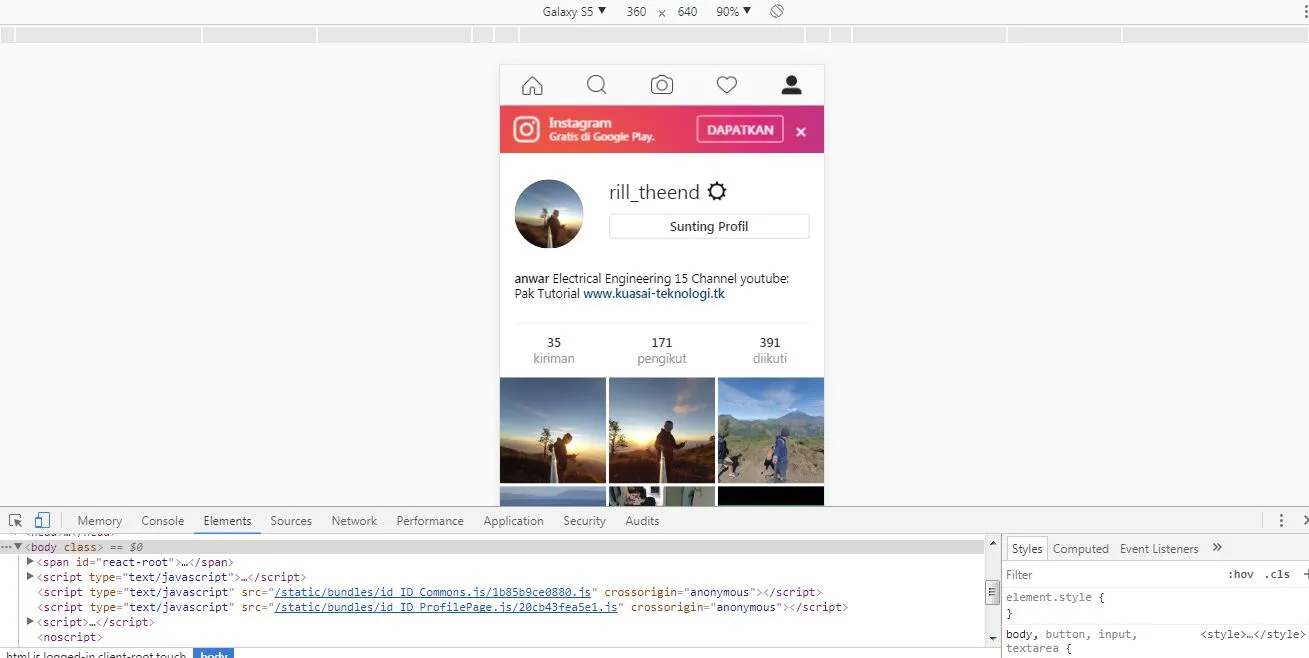
The photo you uploaded is now visible on your Instagram dashboard!
Advantages of Using Instagram on a PC
- Ability to save photos with normal quality.
Disadvantages of Using Instagram on a PC
- Cannot access Direct Messages (DM).
- Cannot view people’s Stories.
That’s all for this explanation. I hope this article is useful and easy to follow. Good luck!