
What is XHTML?
XHTML was a programming language commonly used back in the days when Nokia phones like the XpressMusic, C2, C5, etc., were popular. It has since evolved into HTML5. Let’s take a look at XHTML below:

1. Getting to Know XHTML
XHTML stands for Extensible Hypertext Markup Language. It is a reformed version of HTML that uses the XML paradigm.
Why do we need XHTML? Because XHTML is a cleaner and more structured version of HTML, making it parseable across many browser platforms—regular web browsers, mobile browsers, and other gadgets.
XHTML leverages the advantages of XML to enrich HTML. The benefits of writing HTML in XML format include:
- In XML, you can introduce new elements or new element attributes, allowing you to create specifications for new modules.
- XHTML more easily accommodates new interoperability or new element attributes.
In practice, writing an XHTML document is almost identical to writing an HTML document, with just a few distinct characteristics:
- It must be written in lowercase, both for tag names and attributes.
- Attribute values must be enclosed in double quotes.
- You cannot use standalone attributes in XHTML. If you encounter a standalone attribute, you must assign it to a dummy variable (e.g.,
noborder="noborder"). - Empty elements must be closed with
/>(e.g.,<br />instead of just<br>). - The
<a>element cannot contain other<a>elements. - The
<button>element cannot contain<input>,<select>,<textarea>,<label>,<button>,<form>,<fieldset>,<iframe>, or<isindex>elements. - The
<form>element cannot contain other<form>elements. - The
<label>element cannot contain<img>,<object>,<big>,<small>,<sub>, or<sup>elements. - You cannot use sensitive characters directly. For example, if an attribute value contains an ampersand (&), it must be written as
&.
2. Displaying Text
HTML is a simple document format used to display text and images. Below is an example of placing text in an HTML document and setting its alignment. Check the code details to learn how to create a document as shown in the image below:
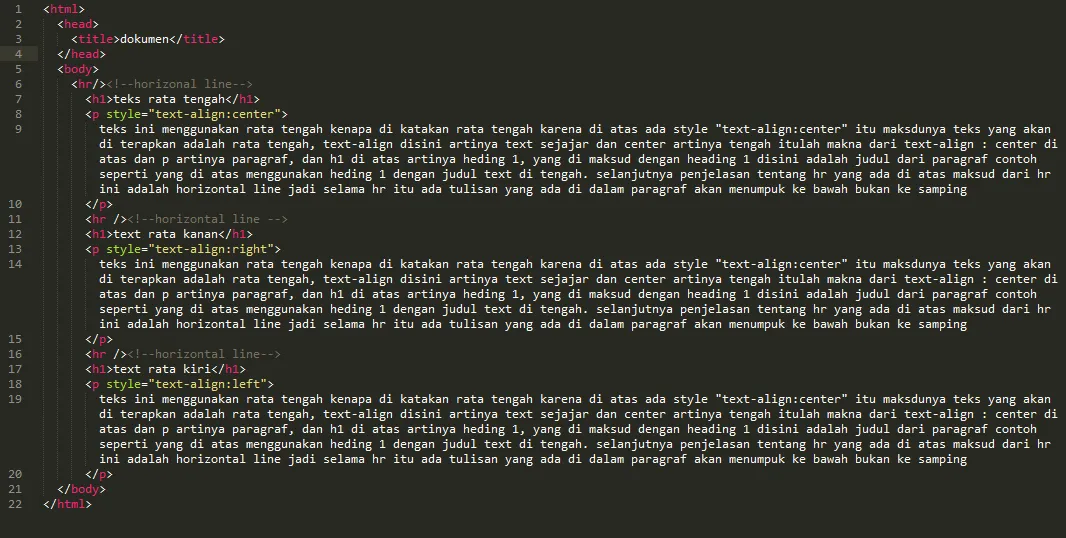 Image 1
If saved and opened in a browser, the appearance will look like the following. You can see that each paragraph has different alignments: center, right, and left.
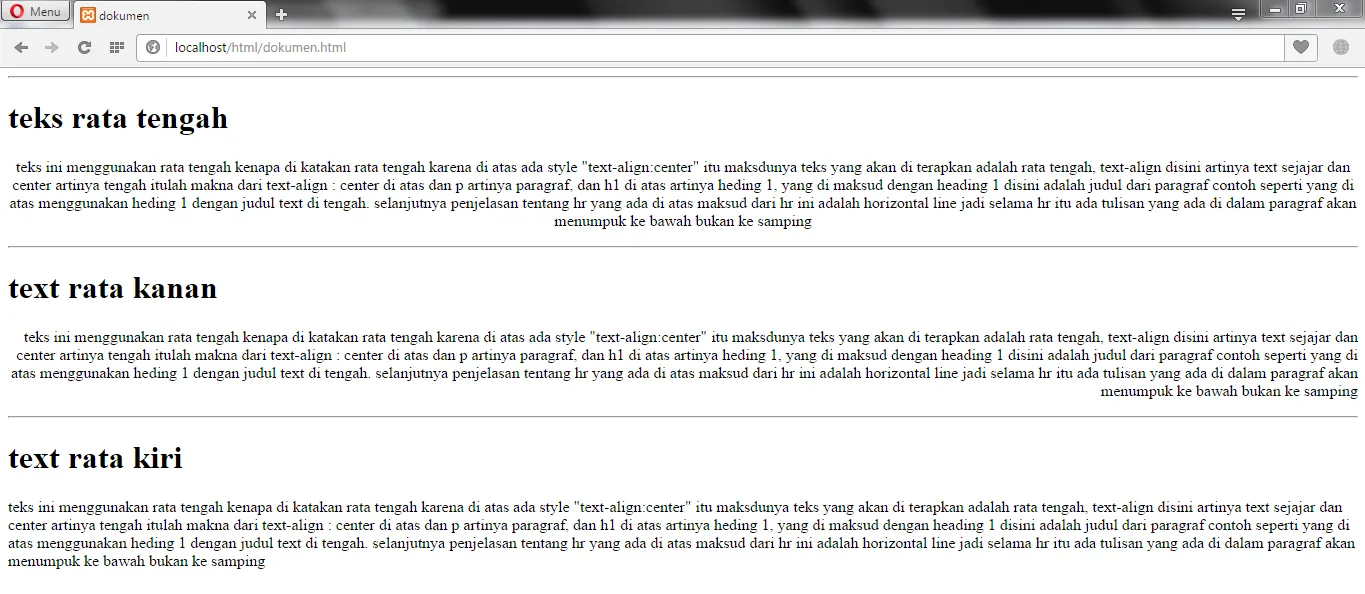 Image 2
That’s all for this post! Stay tuned for more upcoming tutorials here on the Kuasai Teknologi blog. Hopefully, this is useful for all of you, and may your programming skills improve rapidly!
Thank you! Feel free to leave a comment.